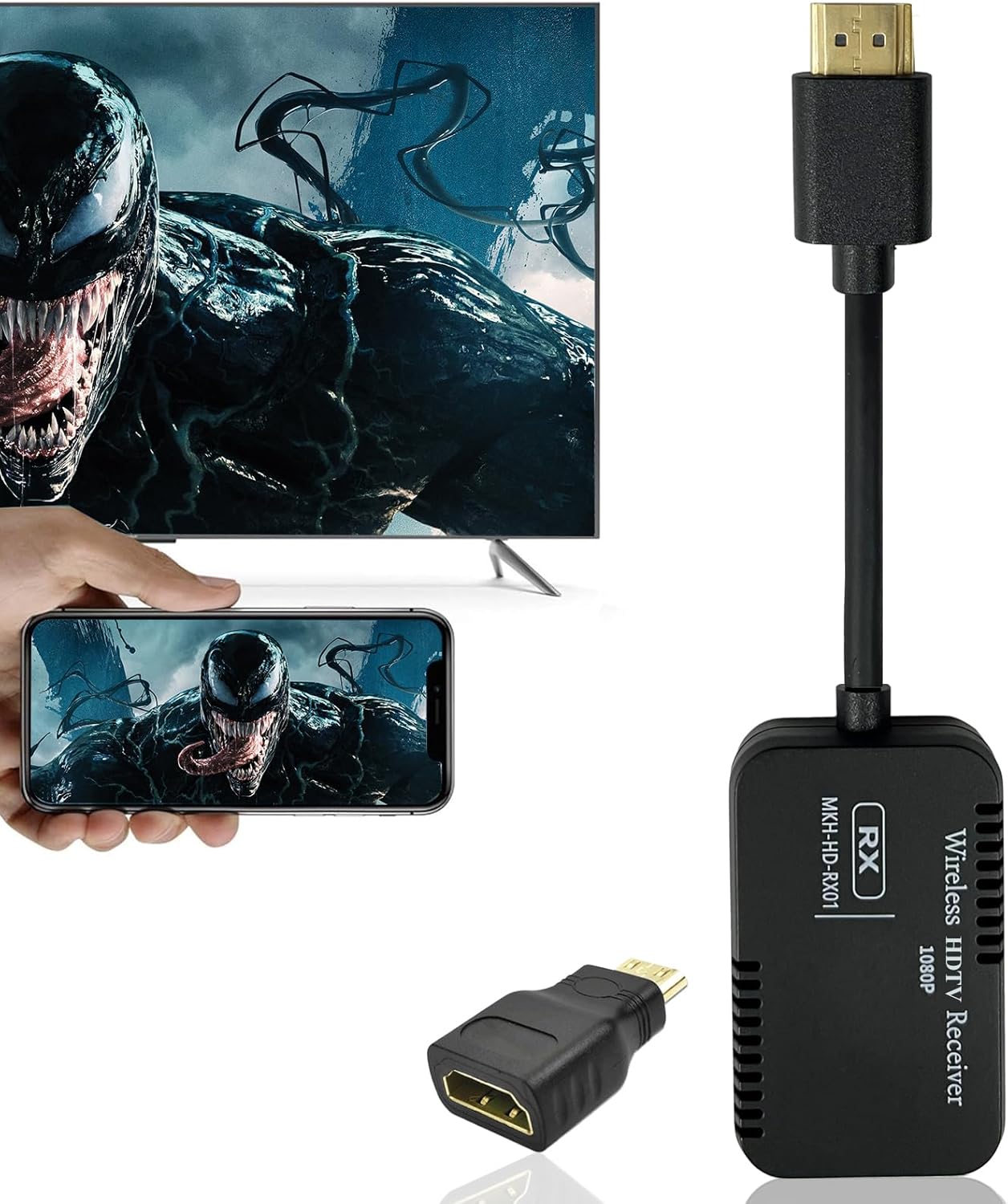
Description:
What's in the box
Details:
| Brand | Snail Bear |
|---|---|
| Connectivity Technology | HDMI |
| Connector Type | HDMI |
| Special Feature | IOS No Support HDCP Apps like N*etflix, hulu, pr*ime-video, H*BO, Dire*cTV, BT Sp*ort, sk*y go, Dsn*ey +, IOS Suport Free apps like You*Tube, Twi*tch, Face*book, Red*dit, Micro**soft office, Ti*kTok, Met*a, Dail*ymotion, Safa*ri, Tw*itter, Window & Android Support most of video Apps |
| Resolution | 1080p |
| Supported Internet Services | IOS No Support HDCP Apps like N*etflix, hulu, pr*ime-video, H*BO, Dire*cTV, BT Sp*ort, sk*y go, Dsn*ey +, IOS Suport Free apps like You*Tube, Twi*tch, Face*book, Red*dit, Micro**soft office, Ti*kTok, Met*a, Dail*ymotion, Safa*ri, Tw*itter, Window & Android Support most of video Apps |
| Controller Type | Button Control |
| Form Factor | TV Stick |
| Color | Black |
| Model Name | 41978e30-290b-4a41-941a-274e1ea2384f |
Visit the Snail Bear Store
Wireless HDTV Screen Mirror Adapter 1080P, Only Mirror Screen Stream Video/Audio from Phone/Tablet/Laptop to TV/Projector/Monitor, iOS No Support HDCP Apps Like Net*Flix, Hu*lu+
 Imported From: United States
At BOLO, we work hard to ensure the products you receive are new, genuine, and sourced from reputable suppliers.
Every product in the BOLO catalogue is sourced through our Verified Global Supply Network of verified sellers, authorized distributors or directly from the manufacturer.
Each product undergoes thorough inspection and verification at our consolidation and fulfilment centers to ensure it meets our strict authenticity and quality standards before being shipped and delivered to you.
If you ever have concerns regarding the authenticity of a product purchased from us, please contact Bolo Support. We will review your inquiry promptly and, if necessary, provide documentation verifying authenticity or offer a suitable resolution.
Your trust is our top priority, and we are committed to maintaining transparency and integrity in every transaction.
While we strive to display accurate information, variations in packaging, labeling, instructions, or formulation may occasionally occur due to regional differences or supplier updates. For detailed or manufacturer-specific information, please contact the brand directly or reach out to BOLO Support for assistance.
Unless otherwise stated, all prices displayed on the product page include applicable taxes and import duties.
BOLO operates in accordance with the laws and regulations of Qatar. Any items found to be restricted or prohibited for sale within the Qatar will be cancelled prior to shipment. We take proactive measures to ensure that only products permitted for sale in Qatar are listed on our website.
All items are shipped by air, and any products classified as “Dangerous Goods (DG)” under IATA regulations will be removed from the order and cancelled.
All orders are processed manually, and we make every effort to process them promptly once confirmed. Products cancelled due to the above reasons will be permanently removed from listings across the website.


How to connect?
-
G2pro wireless display adapter
iPhone/iPad connection
- Connect the G2pro to the display device and power supply, the device name “UniMirror-XXX” will appear on the screen. (No signal from TV, switch the signal source to the corresponding HDMI source)
- Click Screen Mirroring to connect to “UniMirror-XXX”in your iPhone.
- Enter the verification code(First time), i.e. Pin Code at the top of the display and wait for a few seconds to connect successfully. After that, no code is required for future connections.

-
G2pro wireless display adapter
Mac Book connection
- Connect G2pro to the display device and power supply, at this time the device name “UniMirror-XXX” will appear on the screen. (TV no signal, switch the signal source to the corresponding HDMI signal source)
- Open “System preference”- “Display” -“ Airplay” - “UniMirror-XXX”and connect it.
- Enter the verification code, i.e. Pin Code at the top of the display and wait for a few seconds to connect successfully(Only First time) .
- Once connected, you can choose screen extension or screen mirroring.
-
G2pro wireless display adapter
Android phone and tablet connection
- Connect the G2pro to the display device and power supply, the device name “UniMirror-XXX” will appear on the screen. (If no signal from TV, switch the signal source to the corresponding HDMI source)
- Find Miracast function (such as screen mirroring/Miracast/smart view) in your Android phone to connect to “UniMirror-XXX”. Or tap Settings, search for cast screen in the search bar, find the mobile phone cast function, then find “UniMirror-XXX” to connect.
-
G2pro wireless display adapter
Windows10+ connection
- Connect the G2pro to the display device and power supply, the device name “UniMirror-XXX” will appear on the screen. (No signal from TV, switch the signal source to the corresponding HDMI source)
- Open the laptop, press window + P / K Key, to open the screen casting function, click to connect to the wireless display.
- Find the device name “UniMirror-XXX”to connect, wait for a few seconds to mirroring the screen.
- Once connected, you can choose screen extension or screen mirroring.
More from this brand
Similar items from “Streaming Media Players”
Share with
Or share with link
https://www.bolo.qa/products/UO0QKSPMU2C
Visit the Snail Bear Store
Wireless HDTV Screen Mirror Adapter 1080P, Only Mirror Screen Stream Video/Audio from Phone/Tablet/Laptop to TV/Projector/Monitor, iOS No Support HDCP Apps Like Net*Flix, Hu*lu+
Imported From: United States
At BOLO, we work hard to ensure the products you receive are new, genuine, and sourced from reputable suppliers.
Every product in the BOLO catalogue is sourced through our Verified Global Supply Network of verified sellers, authorized distributors or directly from the manufacturer.
Each product undergoes thorough inspection and verification at our consolidation and fulfilment centers to ensure it meets our strict authenticity and quality standards before being shipped and delivered to you.
If you ever have concerns regarding the authenticity of a product purchased from us, please contact Bolo Support. We will review your inquiry promptly and, if necessary, provide documentation verifying authenticity or offer a suitable resolution.
Your trust is our top priority, and we are committed to maintaining transparency and integrity in every transaction.
While we strive to display accurate information, variations in packaging, labeling, instructions, or formulation may occasionally occur due to regional differences or supplier updates. For detailed or manufacturer-specific information, please contact the brand directly or reach out to BOLO Support for assistance.
Unless otherwise stated, all prices displayed on the product page include applicable taxes and import duties.
BOLO operates in accordance with the laws and regulations of Qatar. Any items found to be restricted or prohibited for sale within the Qatar will be cancelled prior to shipment. We take proactive measures to ensure that only products permitted for sale in Qatar are listed on our website.
All items are shipped by air, and any products classified as “Dangerous Goods (DG)” under IATA regulations will be removed from the order and cancelled.
All orders are processed manually, and we make every effort to process them promptly once confirmed. Products cancelled due to the above reasons will be permanently removed from listings across the website.
Description:
What's in the box
Details:
| Brand | Snail Bear |
|---|---|
| Connectivity Technology | HDMI |
| Connector Type | HDMI |
| Special Feature | IOS No Support HDCP Apps like N*etflix, hulu, pr*ime-video, H*BO, Dire*cTV, BT Sp*ort, sk*y go, Dsn*ey +, IOS Suport Free apps like You*Tube, Twi*tch, Face*book, Red*dit, Micro**soft office, Ti*kTok, Met*a, Dail*ymotion, Safa*ri, Tw*itter, Window & Android Support most of video Apps |
| Resolution | 1080p |
| Supported Internet Services | IOS No Support HDCP Apps like N*etflix, hulu, pr*ime-video, H*BO, Dire*cTV, BT Sp*ort, sk*y go, Dsn*ey +, IOS Suport Free apps like You*Tube, Twi*tch, Face*book, Red*dit, Micro**soft office, Ti*kTok, Met*a, Dail*ymotion, Safa*ri, Tw*itter, Window & Android Support most of video Apps |
| Controller Type | Button Control |
| Form Factor | TV Stick |
| Color | Black |
| Model Name | 41978e30-290b-4a41-941a-274e1ea2384f |
How to connect?
-
G2pro wireless display adapter
iPhone/iPad connection
- Connect the G2pro to the display device and power supply, the device name “UniMirror-XXX” will appear on the screen. (No signal from TV, switch the signal source to the corresponding HDMI source)
- Click Screen Mirroring to connect to “UniMirror-XXX”in your iPhone.
- Enter the verification code(First time), i.e. Pin Code at the top of the display and wait for a few seconds to connect successfully. After that, no code is required for future connections.
-
G2pro wireless display adapter
Mac Book connection
- Connect G2pro to the display device and power supply, at this time the device name “UniMirror-XXX” will appear on the screen. (TV no signal, switch the signal source to the corresponding HDMI signal source)
- Open “System preference”- “Display” -“ Airplay” - “UniMirror-XXX”and connect it.
- Enter the verification code, i.e. Pin Code at the top of the display and wait for a few seconds to connect successfully(Only First time) .
- Once connected, you can choose screen extension or screen mirroring.
-
G2pro wireless display adapter
Android phone and tablet connection
- Connect the G2pro to the display device and power supply, the device name “UniMirror-XXX” will appear on the screen. (If no signal from TV, switch the signal source to the corresponding HDMI source)
- Find Miracast function (such as screen mirroring/Miracast/smart view) in your Android phone to connect to “UniMirror-XXX”. Or tap Settings, search for cast screen in the search bar, find the mobile phone cast function, then find “UniMirror-XXX” to connect.
-
G2pro wireless display adapter
Windows10+ connection
- Connect the G2pro to the display device and power supply, the device name “UniMirror-XXX” will appear on the screen. (No signal from TV, switch the signal source to the corresponding HDMI source)
- Open the laptop, press window + P / K Key, to open the screen casting function, click to connect to the wireless display.
- Find the device name “UniMirror-XXX”to connect, wait for a few seconds to mirroring the screen.
- Once connected, you can choose screen extension or screen mirroring.
More from this brand
Similar items from “Streaming Media Players”
Share with
Or share with link
https://www.bolo.qa/products/UO0QKSPMU2C